[Skip to content](https://www.t-mobile.com/home-internet/the-signal/internet-devices/pros-and-cons-of-using-a-gateway-vs-router-and-modem#maincontent)
[The Signal](https://www.t-mobile.com/home-internet/the-signal)
- [All Blogs](https://www.t-mobile.com/home-internet/the-signal/latest)
- [Speed](https://www.t-mobile.com/home-internet/the-signal/category/speed)
- [Internet Devices](https://www.t-mobile.com/home-internet/the-signal/category/internet-devices)
- [ISP](https://www.t-mobile.com/home-internet/the-signal/category/isp)
- [Internet Help](https://www.t-mobile.com/home-internet/the-signal/category/internet-help)
- [Dialed In](https://www.t-mobile.com/dialed-in/)
- [All Blogs](https://www.t-mobile.com/home-internet/the-signal/latest)
- [Speed](https://www.t-mobile.com/home-internet/the-signal/category/speed)
- [Internet Devices](https://www.t-mobile.com/home-internet/the-signal/category/internet-devices)
- [ISP](https://www.t-mobile.com/home-internet/the-signal/category/isp)
- [Internet Help](https://www.t-mobile.com/home-internet/the-signal/category/internet-help)
- [Dialed In](https://www.t-mobile.com/dialed-in/)
1. [The Signal](https://www.t-mobile.com/home-internet/the-signal)
2. Category:[Internet Devices](https://www.t-mobile.com/home-internet/the-signal/category/internet-devices)
[Internet DevicesCategory](https://www.t-mobile.com/home-internet/the-signal/category/internet-devices)
# Pros & Cons of Using a Gateway vs. Router & Modem
Published: September 19, 2023
|11 min read
If you have home internet, you likely also have a modem and a router. However, while modems and routers used to be two separate pieces of hardware, increasingly, they’re combined into one device called a gateway. Depending on your internet service provider (ISP), you might have an individual modem and router or a gateway device.

#### Jump to a Section^
1. [Modems 101](https://www.t-mobile.com#modems101)
2. [Routers 101](https://www.t-mobile.com#routers101)
3. [Can you use a modem without a router?](https://www.t-mobile.com#modemwithoutrouter)
4. [Gateways 101](https://www.t-mobile.com#gateways101)
5. [Gateways: Pros and cons](https://www.t-mobile.com#gatewaysprosandcons)
6. [Separate modem and router setup: Pros and cons](https://www.t-mobile.com#separatemodemandrouter)
7. [Buying your own equipment](https://www.t-mobile.com#buying-yourownequipment)
8. Show More^
- Share "Pros & Cons of Using a Gateway vs. Router & Modem" on X
- Share "Pros & Cons of Using a Gateway vs. Router & Modem" on Facebook
- Share "Pros & Cons of Using a Gateway vs. Router & Modem" on LinkedIn
This guide will walk you through everything you need to know about modems, routers, and gateways, including how they work, the benefits and considerations of each setup, and which options may be best for your needs. Let’s start with modems and go from there.
## __Modems 101__
### __What is a modem?__
A modem (short for "modulator-demodulator") is a device that acts as the bridge between your home and your internet service provider (ISP). It connects your home to the internet by translating the signal from your ISP into a format that your devices can use.
### __What does a modem do?__
The primary purpose of a modem is to receive data from your ISP and convert that data into a signal your devices can process. The type of modem that you have will depend on the type of internet service you have, such as cable, DSL, satellite, fiber, etc. Your modem will need to be compatible with your connection type. The modem typically connects to your ISP via coaxial, phone, or fiber optic lines.
### __What does a modem look like?__
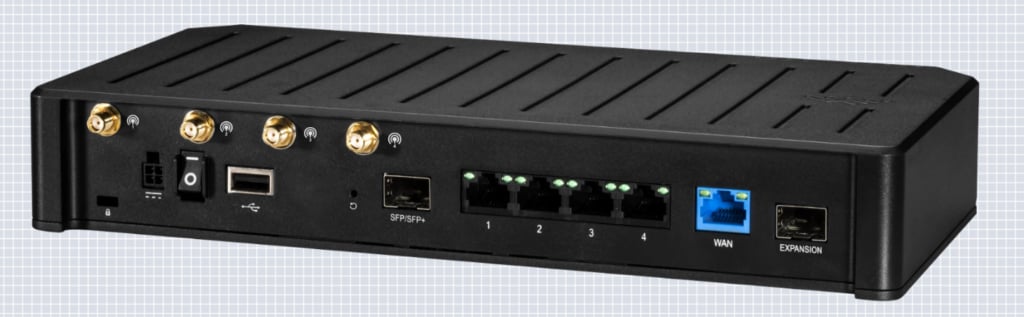
Standalone modems are typically small, square devices, usually black or grey, with a series of LED lights that indicate power, data transmission, and connection status. They might have external antennas, but not all do. They usually feature several Ethernet ports for wired connections inside the modem, and one or two USB ports.
## __Routers 101__
### __What is a router?__
While a modem connects your home to the internet, a router is responsible for connecting devices throughout your home, creating your own little network called a local area network (LAN). Routers can either be used with a separate modem, or they can be combined with a modem in a gateway, which we’ll get to later.
### __How does a router work?__
Once your modem receives an internet signal, the router uses an Ethernet cable to connect to the modem and broadcast the signal throughout your home via Wi-Fi. This allows all your go-to devices—such as smartphones, computers, tablets, cameras, and smart home assistants—to connect to the internet wirelessly. In addition, a router may also give you extra features like firewall protection and the ability to set up a guest network in your home.
### __What does a router look like?__
A router is often bigger than a modem and can be more complex in its design. While a modem may have one or two internal antennas (if any), a router will likely have external, adjustable antennas to improve Wi-Fi signal coverage. Inside a router in the back, you may also find more Ethernet ports (often 4-5) and USB ports.
## __Can you use a modem without a router?__
Technically, yes. You can use a modem on its own to provide internet access to a few devices through Ethernet cables, but the number of devices you can connect is limited. Without a router, you can’t enjoy wireless internet or create a home network. Modems and routers work best together because they provide both internet access and a wireless network for all your devices.
## __Gateways 101__
### __What is a gateway?__
A gateway is a device that combines both a modem and a router into one unit.
### __How does a gateway work?__
It handles the connection to your ISP (like your modem) and also broadcasts the internet connection to devices in your home (like your router). Many ISPs now give you gateways to simplify your home internet setup and cut down on the number of devices and steps you need to get access.
### __What does a gateway look like?__
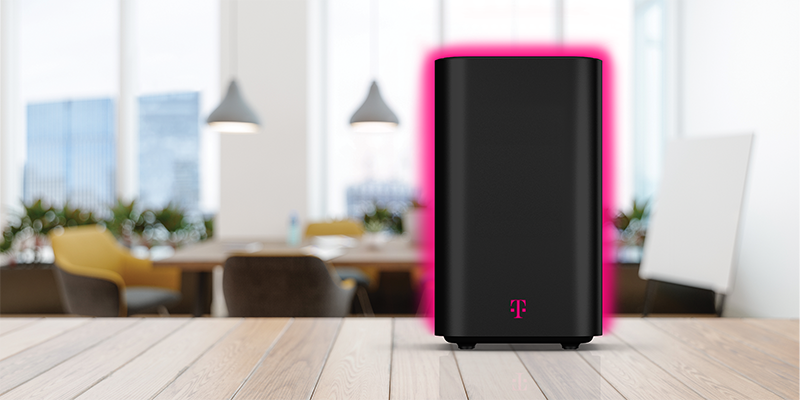
Gateways are often taller and thinner than standalone modems or routers—sometimes resembling small towers, or upright tablets—since they need to house both modem and router components. Some gateways will have one or two external antennas to broadcast the Wi-fi signal throughout your home—though some models are designed with internal antennas to keep the design sleek. It usually has Ethernet ports (typically 2-4) for wired connections, as well as USB ports (on some models).
## __Gateways: Pros and cons__
#### __The pros__
- __Simplicity__. Gateways eliminate the need for multiple devices. You won’t have to worry about connecting and managing a separate modem and router.
- __Fewer messy cords__. Fewer devices mean fewer cords to manage and less clutter in your home.
- __Automatic updates__. ISPs often provide gateways, and they typically handle hardware upgrades and firmware updates automatically, saving you the hassle of managing them yourself.
#### __The considerations__
- __Less flexibility__. With a gateway, you may have fewer options for customizing settings or upgrading like you would with a separate modem and router situation.
## __Separate modem and router setup: Pros and cons__
For those who opt for the traditional modem and router setup, here’s a look at the pros and cons.
#### __The pros__
- __Customization__. You have the ability to choose your modem and router separately, tailoring your setup to meet specific needs for speed, coverage, and features.
- __Upgradability__. If you need to upgrade your router (for example, to boost Wi-Fi coverage or support technology like Wi-Fi 6), you can do so without replacing the modem.
- __More control__. Separate devices often give you more control over your network settings, such as setting up guest networks or using more advanced security features.
#### __The considerations__
- __More cords.__ More devices mean more cables and more space required to set them up.
- __Complex setup.__ Setting up and troubleshooting two devices can be more complicated than using a single gateway.
- __More expensive.__ Buying separate high-quality modems and routers can be more expensive upfront than simply renting or using a gateway device from your ISP.
## __Buying your own equipment__
Why buy a modem, router, or gateway on your own? If your ISP doesn’t require you to rent a gateway or modem/router setup, you may be thinking about purchasing your own in order to save money in the long run and have more control over your equipment. Here are some things to doublecheck before you decide:
- __Compatibility.__ Ensure the equipment is compatible with your ISP and supports your internet speed plan.
- __Type of internet connection.__ Whether you have cable, DSL, fiber, or satellite, make sure the modem matches the type of connection you have.
- __Speed requirements.__ If you have a high-speed plan, make sure the modem supports those speeds.
## __Gateway vs. router & modem: The set up process__
### __How to connect a router to a modem__
In order to connect your router to a modem, you’ll need the router, modem, and an ethernet cable—then follow these steps:
1. Unplug your modem’s power source from the wall. Then, make sure your modem is connected to the wall via coaxial cable.
2. Once the modem is unplugged from its power source but connected by coaxial cable, plug an ethernet cable (which should be included with your router) into the router’s WAN/uplink port. This port should be marked. If not, it looks like a telephone jack, and the ethernet cable should clip in securely. Often, the WAN port is also a different color from the other ports on your router. Plug the other end of the ethernet cable into your router.
3. Plug the modem’s power source into an electrical outlet, then plug the router into an electrical outlet as well. There might be multiple lights on your modem, but the main light is the power light, and it is usually green.
4. When this light stops flashing and stays solid, attempt to connect a device, like phone or laptop, to your Wi-Fi network.
### __Troubleshooting__
Once your router is connected to your modem and both are plugged in to the wall, you should have internet access on all your connected devices. If devices are showing the name of your Wi-Fi network and you’re able to connect but you still don’t have access to the internet, you may need to reboot your router or modem. If your Wi-Fi network is not appearing as an option on your devices, there is probably an issue with your router. When the network appears and your devices say you’re connected but you still can’t access the internet, there is likely an issue with your modem. Your internet service provider can also help troubleshoot these issues.
Some other issues to check include:
- Damaged coax or ethernet cables
- Loose connections
- Malfunctioning equipment
- Service outage your area
Once you connect your router to a modem, there are a few precautions you should take to protect your wireless network. The first step to protecting your privacy is changing the default Wi-Fi password that comes with your router. This can prevent hackers from accessing your network. In order to change the password, you’ll need to log into your router.
You can make changes to the settings of your router by opening a web browser or app and entering your router’s IP address in the search bar, then logging in with your username and password. There, you can change passwords and set up guest networks to safeguard privacy.
## __How to set up a gateway__
Since your ISP’s gateway includes a router and modem in one, there’s no need to connect two separate devices, you just plug it in to begin setup. For example, [T-Mobile Home Internet](https://www.t-mobile.com/home-internet) customers can take the following steps after receiving their gateway. Other providers may offer a similar setup:
1. Place the gateway close to a window, on a high up on an upper floor or bookshelf with access to an outlet.
2. Plug it in and wait for the light to come on.
3. Once the indicator light is on, download the T-Life app by scanning the QR code on your setup card or gateway screen.
4. Follow the steps on the app, which will check your signal strength and, if it’s not ideal, will help you find a better location for your device.
5. After you’re done, update your network name/password, and more.
## __Conclusion: Gateway vs. router & modem__
When deciding between a gateway or a modem-and-router scenario, the choice largely depends on your needs. If simplicity, more control over where your home setup will be, and fewer cables are your priority, a gateway may be a great option. It’s a hassle-free way to connect to the internet and manage your home network. However, if you’re more hands-on and value customization, flexibility, and the option to upgrade your devices individually, a traditional modem and router setup might be the better choice.
No matter which option you choose, it’s important to understand how each piece of equipment works, what your needs are, and what your ISP provides. Whether you’re looking to save money, boost your internet speeds, or streamline your network setup, this comprehensive guide should provide the answers you need to make an informed decision about home internet.
T-Mobile is America’s fastest growing Home Internet provider—with no annual contract and no equipment fees. There’s even an advanced [All-In Internet](https://www.t-mobile.com/home-internet/plans/all-in-unlimited-internet-plan) plan that includes a high-performance premium 5G Gateway. [Find out if it’s available in your area](https://www.t-mobile.com/home-internet/eligibility) and then [try it for 15 days](https://www.t-mobile.com/support/home-internet/15-day-test-drive) to see if it's a good fit.
##### You May Also Be Interested In:
[Wi-Fi Security: Essential Protections](https://www.t-mobile.com/home-internet/the-signal/speed/wi-fi-security-essential-protections)
[Setting Up A Guest Wi-Fi Network](https://www.t-mobile.com/home-internet/the-signal/speed/setting-up-guest-wi-fi-network)
[Whole Home Wi-Fi: Utilizing Repeaters, Extenders or Mesh](https://www.t-mobile.com/home-internet/the-signal/speed/whole-home-wi-fi-repeaters-extenders-or-mesh)
Sources:
- [https://www.gartner.com/en/glossary](https://www.gartner.com/en/glossary)
- [https://www.nytimes.com/wirecutter/blog/modem-vs-router](https://www.nytimes.com/wirecutter/blog/modem-vs-router)
- [https://www.lifewire.com/difference-between-modem-and-router-4159854](https://www.lifewire.com/difference-between-modem-and-router-4159854)
- [https://www.lifewire.com/what-does-a-modem-do-5179877](https://www.lifewire.com/what-does-a-modem-do-5179877)
- [https://www.pcmag.com/encyclopedia/term/optical-network-terminal](https://www.pcmag.com/encyclopedia/term/optical-network-terminal)
- [https://www.techtarget.com/iotagenda/definition/gateway](https://www.techtarget.com/iotagenda/definition/gateway)
- [https://www.cnet.com/home/internet/theres-an-easy-way-to-save-on-your-internet-bill-buy-your-own-router/](https://www.cnet.com/home/internet/theres-an-easy-way-to-save-on-your-internet-bill-buy-your-own-router/)
- [https://www.lifewire.com/connect-router-to-modem-5179415](https://www.lifewire.com/connect-router-to-modem-5179415)
- [https://www.wikihow.com/Connect-a-Router-to-a-Modem](https://www.wikihow.com/Connect-a-Router-to-a-Modem)
- [https://www.t-mobile.com/support/home-internet/5g-gateway-g4ar](https://www.t-mobile.com/support/home-internet/5g-gateway-g4ar)
- [https://www.t-mobile.com/support/home-internet/t-mobile-gateway](https://www.t-mobile.com/support/home-internet/t-mobile-gateway)
Tags
- [Compare](https://www.t-mobile.com/home-internet/the-signal/archive/compare)
- [Gateway](https://www.t-mobile.com/home-internet/the-signal/archive/gateway)
- [Modem](https://www.t-mobile.com/home-internet/the-signal/archive/modem)
- [Router](https://www.t-mobile.com/home-internet/the-signal/archive/router)
## Related Articles
NEW
[Read More](https://www.t-mobile.com/home-internet/the-signal/internet-help/wi-fi-hacker-prevention)
[](https://www.t-mobile.com/home-internet/the-signal/internet-help/wi-fi-hacker-prevention)
[Internet Help](https://www.t-mobile.com/home-internet/the-signal/category/internet-help)
## [Wi-Fi Hacker Prevention: How to Spot Attacks and Protect Your Network](https://www.t-mobile.com/home-internet/the-signal/internet-help/wi-fi-hacker-prevention)
September 1, 2026
NEW
[Read More](https://www.t-mobile.com/home-internet/the-signal/internet-devices/do-you-need-mesh-wi-fi)
[](https://www.t-mobile.com/home-internet/the-signal/internet-devices/do-you-need-mesh-wi-fi)
[Internet Devices](https://www.t-mobile.com/home-internet/the-signal/category/internet-devices)
## [When You Actually Need Mesh Wi-Fi and When You May Not](https://www.t-mobile.com/home-internet/the-signal/internet-devices/do-you-need-mesh-wi-fi)
September 9, 2026
NEW
[Read More](https://www.t-mobile.com/home-internet/the-signal/internet-connection/5g-home-internet-vs-mobile-hotspot-moving)
[](https://www.t-mobile.com/home-internet/the-signal/internet-connection/5g-home-internet-vs-mobile-hotspot-moving)
[Internet Connection](https://www.t-mobile.com/home-internet/the-signal/category/internet-connection)
## [5G Home Internet vs. Hotspot: What’s Best for Home Internet When You Move?](https://www.t-mobile.com/home-internet/the-signal/internet-connection/5g-home-internet-vs-mobile-hotspot-moving)
May 6, 2026
### Find out if your home address is eligible for T-Mobile 5G Home Internet.
[Check availability](https://www.t-mobile.com/home-internet/eligibility)
Top