- [Support](https://www.t-mobile.com/support)
- [Get started](#)
- [New to T-Mobile?](https://www.t-mobile.com/support/new-to-tmobile)
[Switching is easy](https://www.t-mobile.com/support/new-to-tmobile/family-freedom)
[Set up your device](https://www.t-mobile.com/support/new-to-tmobile/device)
[Using the app](https://www.t-mobile.com/support/plans-features/t-mobile-app)
[All get started topics](https://www.t-mobile.com/support/new-to-tmobile)
- [Account resources](#)
- [Ways to pay your bill](https://www.t-mobile.com/support/account/pay-your-bill)
[All about your bill](https://www.t-mobile.com/support/account/whats-impacting-your-bill)
[Line permissions](https://www.t-mobile.com/support/account/set-online-permissions)
[Your T-Mobile ID](https://www.t-mobile.com/support/account/set-up-and-manage-your-t-mobile-id)
[Your PIN/Passcode](https://www.t-mobile.com/support/account/update-your-customer-pinpasscode)
[All account resources topics](https://www.t-mobile.com/support/account)
- [Network & roaming](#)
- [T-Mobile network](https://www.t-mobile.com/support/coverage/t-mobile-network)
[In-flight texting and Wi-Fi](https://www.t-mobile.com/support/coverage/t-mobile-in-flight-texting-and-wi-fi)
[Wi-Fi Calling](https://www.t-mobile.com/support/coverage/wi-fi-calling-from-t-mobile)
[International roaming](https://www.t-mobile.com/support/coverage/international-roaming-services)
[Mobile Without Borders](https://www.t-mobile.com/support/coverage/mobile-without-borders)
[All network & roaming topics](https://www.t-mobile.com/support/coverage)
- [Plans support](#)
- [Find the right plan](https://www.t-mobile.com/support/plans-features/find-the-right-plan-for-you)
[Netflix on Us](https://www.t-mobile.com/support/plans-features/netflix-on-us)
[HotSpot plans](https://www.t-mobile.com/support/plans-features/mobile-internet-plans-for-hotspots)
[Voicemail](https://www.t-mobile.com/support/plans-features/voicemail)
[Use Mobile HotSpot](https://www.t-mobile.com/support/plans-features/smartphone-mobile-hotspot-wi-fi-sharing--tethering)
[All plans support topics](https://www.t-mobile.com/support/plans-features)
- [Device assistance](#)
- [Tutorials](https://www.t-mobile.com/support/tutorials)
[Troubleshooting](https://www.t-mobile.com/support/phones-tablets-devices/troubleshooting)
[Unlock your device](https://www.t-mobile.com/support/devices/unlock-your-mobile-wireless-device)
[Protect your device](https://www.t-mobile.com/support/devices/protectionandlt360andgt-and-device-protection)
[SIM card & eSIM](https://www.t-mobile.com/support/devices/sim-esim)
[All device assistance topics](https://www.t-mobile.com/support/phones-tablets-devices)
- [Business support](#)
- [Get T-Mobile for Business](https://www.t-mobile.com/support/business/new-to-business)
[Billing and payments](https://www.t-mobile.com/support/business/billing)
[Manage your account](https://www.t-mobile.com/support/business/account)
[Orders and shopping](https://www.t-mobile.com/support/business/orders-shopping)
[Account Hub registration](https://www.t-mobile.com/support/business/account-hub-registration)
[All business support topics](https://www.t-mobile.com/support/business)
[SUPPORT](https://www.t-mobile.com/support)
- [Get started](#)
- [New to T-Mobile?](https://www.t-mobile.com/support/new-to-tmobile)
- [Switching is easy](https://www.t-mobile.com/support/new-to-tmobile/family-freedom)
- [Set up your device](https://www.t-mobile.com/support/new-to-tmobile/device)
- [Using the app](https://www.t-mobile.com/support/plans-features/t-mobile-app)
- [All get started topics](https://www.t-mobile.com/support/new-to-tmobile)
- [Account resources](#)
- [Ways to pay your bill](https://www.t-mobile.com/support/account/pay-your-bill)
- [All about your bill](https://www.t-mobile.com/support/account/whats-impacting-your-bill)
- [Line permissions](https://www.t-mobile.com/support/account/set-online-permissions)
- [Your T-Mobile ID](https://www.t-mobile.com/support/account/set-up-and-manage-your-t-mobile-id)
- [Your PIN/Passcode](https://www.t-mobile.com/support/account/update-your-customer-pinpasscode)
- [All account resources topics](https://www.t-mobile.com/support/account)
- [Network & roaming](#)
- [T-Mobile network](https://www.t-mobile.com/support/coverage/t-mobile-network)
- [In-flight texting and Wi-Fi](https://www.t-mobile.com/support/coverage/t-mobile-in-flight-texting-and-wi-fi)
- [Wi-Fi Calling](https://www.t-mobile.com/support/coverage/wi-fi-calling-from-t-mobile)
- [International roaming](https://www.t-mobile.com/support/coverage/international-roaming-services)
- [Mobile Without Borders](https://www.t-mobile.com/support/coverage/mobile-without-borders)
- [All network & roaming topics](https://www.t-mobile.com/support/coverage)
- [Plans support](#)
- [Find the right plan](https://www.t-mobile.com/support/plans-features/find-the-right-plan-for-you)
- [Netflix on Us](https://www.t-mobile.com/support/plans-features/netflix-on-us)
- [HotSpot plans](https://www.t-mobile.com/support/plans-features/mobile-internet-plans-for-hotspots)
- [Voicemail](https://www.t-mobile.com/support/plans-features/voicemail)
- [Use Mobile HotSpot](https://www.t-mobile.com/support/plans-features/smartphone-mobile-hotspot-wi-fi-sharing--tethering)
- [All plans support topics](https://www.t-mobile.com/support/plans-features)
- [Device assistance](#)
- [Tutorials](https://www.t-mobile.com/support/tutorials)
- [Troubleshooting](https://www.t-mobile.com/support/phones-tablets-devices/troubleshooting)
- [Unlock your device](https://www.t-mobile.com/support/devices/unlock-your-mobile-wireless-device)
- [Protect your device](https://www.t-mobile.com/support/devices/protectionandlt360andgt-and-device-protection)
- [SIM card & eSIM](https://www.t-mobile.com/support/devices/sim-esim)
- [All device assistance topics](https://www.t-mobile.com/support/phones-tablets-devices)
- [Business support](#)
- [Get T-Mobile for Business](https://www.t-mobile.com/support/business/new-to-business)
- [Billing and payments](https://www.t-mobile.com/support/business/billing)
- [Manage your account](https://www.t-mobile.com/support/business/account)
- [Orders and shopping](https://www.t-mobile.com/support/business/orders-shopping)
- [Account Hub registration](https://www.t-mobile.com/support/business/account-hub-registration)
- [All business support topics](https://www.t-mobile.com/support/business)
[Support](https://www.t-mobile.com/support/) [Devices](https://www.t-mobile.com/support/community/phones-tablets-devices)
# Siyata SD7 Ultra 5G
0
Added!
[](https://www.t-mobile.com)
### Manage Links
Click any [available links](https://www.t-mobile.com) to add.
Click any [added links](https://www.t-mobile.com) to remove.
Links with [no highlight](https://www.t-mobile.com) can't be sent.
Done (0 Links)
Learn about your Siyata SD7 Ultra 5G and find steps to get the most out of your device.
## On this page:
- [About](https://www.t-mobile.com#about)
- [Get started](https://www.t-mobile.com#setup)
- [Connections & network](https://www.t-mobile.com#connect)
- [Push To Talk (PTT)](https://www.t-mobile.com#ptt)
- [Settings & reset](https://www.t-mobile.com#settings)
## [](https://www.t-mobile.com)About
- The Siyata SD7 Ultra 5G is a dedicated Push-To-Talk (PTT) device with an integrated bodycam.
- You must setup this device in the [TDC Corporate Admin Tool](https://www.t-mobile.com/support/business/tdc-corporate-admin-tool) before it will work.
### Tech Specs
- __Specs__
- __Display__ 1.14" Color TFT
- __Battery__ 5,100 mAh
- __Keyboard__ Non-touch on-screen keyboard
- __Dimensions__ 4.72” Height, 2.59” Width, 1.02” Depth
- __Weight__ 10.2 Ounces
- __Memory__ 4 GB RAM
- __Storage__ 64 GB ROM
- __Operating System__ Siyata customized Android 14
- __Processor__ Qualcomm QCM6490
- __Expandable Memory__ 128 GB microSD
- __Anti-theft__ Yes / No
- __Advanced messaging__ No
- __Emergency Alerts (WEA)__ See [T-Mobile.com/WEA](https://www.t-mobile.com/responsibility/consumer-info/safety/wireless-emergency-alerts)
- [__Number Verified__](https://www.t-mobile.com/support/plans-features/scam-id-and-scam-block)No
- __SIM card__ Physical SIM (eSIM not available at launch)
- __Device Diagnostics Collection__ Yes / No
- __T-Mobile Video Calling__ No
- __Connectivity__
- Wi-Fi 802.11 a/b/g/n/ac/ax
- NFC
- Bluetooth 5.2
- USB Type-C
- __Network__
- __5G (600 MHz, 2.5 GHz, 5G UC, Non-Standalone (NSA), Standalone (SA))__
- n2, n5, n7, n12, n13, n14, n25, n26, n29, n30, n38, n41, n48, n66, n70, n71, n77, n78
- 5G UC: Device icon shows customers when they are in an area that offers 5G Ultra-Capacity.
- __4G LTE (including roaming bands)__ 1, 3, 5, 7, 8, 20, 28, 32, 38, 39, 41, 42
- __3G / 4G (HSPA / UMTS / HSPA+)__ 1, 5, 8
- __2G (GSM, GPRS, and EDGE)__ 900, 1800 MHz
- __HD Voice Capable__ No
- __VoLTE Capable__ No
- __VoNR (Voice over 5G) Capable__ No
- __VoWi-Fi__ No
- __Satellite Ready__ No
- __Camera__
- Front-facing: 20 MP
- Image Stabilization
## [](https://www.t-mobile.com)Get started
1. Make sure the device is set up in the [TDC Corporate Admin Tool](https://www.t-mobile.com/support/business/tdc-corporate-admin-tool).
2. Slide up the SIM tray holder and open it, place the SIM card with the gold contacts facing down, then close the SIM tray holder.
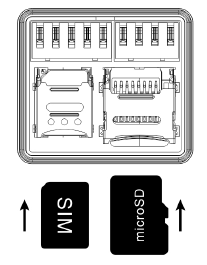
3. If desired, repeat the same process for the microSD card.
4. Insert the battery starting at the top, then click the bottom into place.
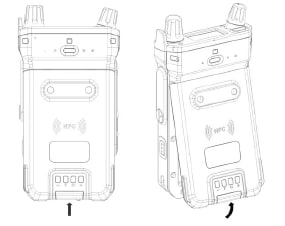
5. Twist the Volume Rotary Knob to turn the device on.
### Buttons & Icons

01. Lanyard hole
02. PTT button
03. Programamble buttons (sides)
04. Camera
05. Speaker
06. Programable button (front)
07. SOS button
08. Rotary Volume + On/Off selector
09. Color TFT display
10. Rotary Channel selector
11. USB-C
12. Flashlight
13. Belt Clip mount
14. Replacable battery pack
15. Charging pins
16. 13-Pin Secure Connector
17. Power button

1. PTT Online/Offline
2. Accessory connected
3. Bluetooth
4. Wi-Fi or Cellular signal
5. Battery charge
6. TDC Channel Name
7. TDC Zone
## [](https://www.t-mobile.com)Connections & network
### Bluetooth
__Turn on/off__
1. From the home screen, press down on the __Rotary Channel Knob__ to open the menu.
2. Scroll to __Network__, then select it.
3. Scroll to __Bluetooth__, then select it.
- If it says *'Click to ON'*, press down on the __Rotary Channel Knob__ to turn it on.
- If it says *'Click to OFF'*, press down on the __Rotary Channel Knob__ to turn it off.
__Pair device__
1. From the home screen, press down on the __Rotary Channel Knob__ to open the menu.
2. Scroll to __Network__, then select it.
3. Scroll to __Bluetooth__, then select it.
4. Make sure it says *'Click to turn OFF'*, then scroll to __Pair Device__ and select it.
5. Scroll through the list of devices and select the one you want to pair.
6. Press down on the __Rotary Channel Knob__ to start pairing.
7. Follow the on-screen instructions to complete pairing, including entering any requested PINs.
__Delete pairing__
1. From the home screen, press down on the __Rotary Channel Knob__ to open the menu.
2. Scroll to __Network__, then select it.
3. Scroll to __Bluetooth__, then select it.
4. Scroll to __Paired Device__, then select it.
5. Scroll through until you find the desired paired device, then select it.
6. Rotate the __Rotary Channel Knob__ to the left to being unpairing.
7. Press down on the __Rotary Channel Knob__ to confirm the unpairing.
### Cellular & APN
Twist the Rotary Channel Knob to scroll through options. Press it to select.
1. From the home screen, press down on the __Rotary Channel Knob__ to open the menu.
2. Scroll to __Network__, then select it.
3. Scroll to __Cellular__, then select it.
4. Choose from the following options:
- Cellular Data (on/off)
- Roaming Data (on/off)
- Set Master SIM (Physical SIM/eSIM)
- Physical SIM connected network (SIM 1)
- eSIM connected network
### Wi-Fi
__Turn on/off__
1. From the home screen, press down on the __Rotary Channel Knob__ to open the menu.
2. Scroll to __Network__, then select it.
3. Scroll to __Wi-Fi__, then select it.
- If it says *'Click to ON'*, press down on the __Rotary Channel Knob__ to turn it on.
- If it says *'Click to OFF'*, press down on the __Rotary Channel Knob__ to turn it off.
__Connect to network__
1. From the home screen, press down on the __Rotary Channel Knob__ to open the menu.
2. Scroll to __Network__, then select it.
3. Scroll to __Wi-Fi__, then select it.
4. Scroll to __Avail. Networks__, then select it.
5. Scroll to and select the desired network.
6. Press down on the __Rotary Channel Knob__ to connect.
7. Use the on-screen keyboard to enter the password, then select the __Checkmark__.
__Forget network__
1. From the home screen, press down on the __Rotary Channel Knob__ to open the menu.
2. Scroll to __Network__, then select it.
3. Scroll to __Wi-Fi__, then select it.
4. Scroll to the network you're connected to, then select it.
5. Scroll the __Rotary Channel Knob__ to the __left__ to forget the network.
6. Press down on the __Rotary Channel Knob__ to confirm deletion.
### Hotspot
__Turn on/off__
1. From the home screen, press down on the __Rotary Channel Knob__ to open the menu.
2. Scroll to __Network__, then select it.
3. Scroll to __Hotspot__, then select it.
- If it says *'Click to ON'*, press down on the __Rotary Channel Knob__ to turn it on.
- If it says *'Click to OFF'*, press down on the __Rotary Channel Knob__ to turn it off.
__Change network name/password/security__
1. From the home screen, press down on the __Rotary Channel Knob__ to open the menu.
2. Scroll to __Network__, then select it.
3. Scroll to __Hotspot__, then select it.
4. Scroll to and select one of the following options to change them:
- Name
- Security
- Password
__Change network band__
1. From the home screen, press down on the __Rotary Channel Knob__ to open the menu.
2. Scroll to __Network__, then select it.
3. Scroll to __Hotspot__, then select it.
4. Scroll to *AP Band* and select to to change between __2.4 GHz__ and __5.0 GHz__.
## [](https://www.t-mobile.com)Push To Talk (PTT)
- Twist the __Rotary Channel Knob__ to scroll through Talkgroups/Channels.
- Press the __Rotary Channel Knob__ to select the Talkgroup/Channel.
- Once selected, press the __red PTT button__ to begin transmitting.
### Covert mode
Covert Mode disables the top display and silences the device speaker. All audio is routed to the accessory.
Twist the Rotary Channel Knob to scroll through options. Press it to select.
1. From the home screen, press down on the __Rotary Channel Knob__ to open the menu.
2. Scroll to __Covert Mode__, then select it.
3. Select __Click to ON__ to turn it on.
To exit Covert Mode, press the __Right Power Button__ to turn on the screen, scroll to __Exit Covert mode__, and select it.
### Zones & settings
__Scan Channels__
Scan Channels must be enabled in [CAT](https://www.t-mobile.com/support/business/tdc-corporate-admin-tool) for this option to show.
1. From the home screen, press down on the __Rotary Channel Knob__ to open the menu.
2. Scroll to __PTT__, then select it.
3. Select __Scan Click to ON__ to turn it on.
4. Select __Scan Click to OFF__ to turn it off.
__Channel Announce__
1. From the home screen, press down on the __Rotary Channel Knob__ to open the menu.
2. Scroll to __PTT__, then select it.
3. Scroll to __Ch. Announce__, then select it.
__Switch Profile__
Switch Profile must be enabled in [CAT](https://www.t-mobile.com/support/business/tdc-corporate-admin-tool) for this option to show.
1. From the home screen, press down on the __Rotary Channel Knob__ to open the menu.
2. Scroll to __Zones__, then select it.
3. Scroll to __Switch Profile__, then select it.
4. Scroll to the desired profile, then select it.
__Do Not Disturb__
1. From the home screen, press down on the __Rotary Channel Knob__ to open the menu.
2. Scroll to __Zones__, then select it.
3. Scroll to __Do Not Disturb__:
- Select __Click to ON__ to turn it on.
- Select __Click to OFF__ to turn it off.
__Video Pull__
Video Pull must be enabled in [CAT](https://www.t-mobile.com/support/business/tdc-corporate-admin-tool) for this option to show.
1. From the home screen, press down on the __Rotary Channel Knob__ to open the menu.
2. Scroll to __Zones__, then select it.
3. Scroll to __Video Pull:__
- Select __Click to ON__ to turn it on.
- Select __Click to OFF__ to turn it off.
## [](https://www.t-mobile.com)Settings & reset
### Device information
Twist the Rotary Channel Knob to scroll through options. Press it to select.
1. From the home screen, press down on the __Rotary Channel Knob__ to open the menu.
2. Scroll to __About__, then select it.
3. Scroll to view the following information:
- IMEI 1 (Physical SIM)
- IMSI 1
- ICCID 1
- IMEI 2 (eSIM, not supported on T-Mobile)
- IMSI 2
- Version
- Hardware
- SKU
- Wi-Fi
- Reboot
### Display
1. From the home screen, press down on the __Rotary Channel Knob__ to open the menu.
2. Scroll to __System__, then select it.
3. Scroll to __Display__, then select it.
4. Adjust the following options:
- Device Name
- Display Orientation
- Theme
### Buttons
1. From the home screen, press down on the __Rotary Channel Knob__ to open the menu.
2. Scroll to __System__, then select it.
3. Scroll to __Buttons__, then select it.
4. Choose what the following buttons do:
- Button 1
- Button 2
- Front Button
### Alerts
1. From the home screen, press down on the __Rotary Channel Knob__ to open the menu.
2. Scroll to __System__, then select it.
3. Scroll to __Alerts__, then select it.
4. Turn the following alerts on or off:
- No network
- Low battery
### Auto-shutdown (VK7)
1. From the home screen, press down on the __Rotary Channel Knob__ to open the menu.
2. Scroll to __System__, then select it.
3. Scroll to __VK7 Settings__, then select it.
4. Adjust the following options:
- Auto Shut Down (on/off)
- Delay (30-90 minutes)
### Date & Time
1. From the home screen, press down on the __Rotary Channel Knob__ to open the menu.
2. Scroll to __System__, then select it.
3. Scroll to __Date & Time__, then select it.
4. Adjust the following options:
- Format (12hr or 24hr)
- Network Time (on/off)
### Settings lock
Settings lock prevents a user from changing anything under Network, Location and System settings. It also prevents access to Developer mode.
1. From the home screen, press down on the __Rotary Channel Knob__ to open the menu.
2. Scroll to __System__, then select it.
3. Scroll to __Settings Lock__, then select it.
4. Select __Click to ON__ to turn it on and set the password.
5. Select __Click to OFF__ to enter the password and turn it off.
### Language
1. From the home screen, press down on the __Rotary Channel Knob__ to open the menu.
2. Scroll to __System__, then select it.
3. Scroll to __Language__, then select it.
4. Choose your language:
- English
- Française
- Español
### Restart
1. From the home screen, press down on the __Rotary Channel Knob__ to open the menu.
2. Scroll to __About__, then select it.
3. Scroll to __Reboot__, then select it.
### Network reset
1. From the home screen, press down on the __Rotary Channel Knob__ to open the menu.
2. Scroll to __System__, then select it.
3. Scroll to __Reset Options__, then select it.
4. Scroll to __Network reset__, then select it.
### Factory Data Reset (Delete all)
Resetting all data removes the PTT app. Only perform this when directed by Siyata or Customer Support.
1. From the home screen, press down on the __Rotary Channel Knob__ to open the menu.
2. Scroll to __System__, then select it.
3. Scroll to __Reset Options__, then select it.
4. Scroll to __All Data__ then select it.
5. Click to confirm the reset.
### Mobile Device Unlock
Twist the Rotary Channel Knob to scroll through options. Press it to select.
1. Contact us to request your Mobile Device Unlock PIN.
2. Insert a non-T-Mobile SIM card into the device and turn it on.
3. On the *Network Locked* screen, press the Rotary Channel Knob.
4. Enter the 8-digit unlock PIN, then select the check mark.
* * *
Was this helpful?
* * *
## Can't find what you're looking for?
- [Contact Us](https://www.t-mobile.com/contact-us)
- [Ask our community](https://www.t-mobile.com/community/)