- [Support](https://www.t-mobile.com/support)
- [Get started](#)
- [New to T-Mobile?](https://www.t-mobile.com/support/new-to-tmobile)
[Switching is easy](https://www.t-mobile.com/support/new-to-tmobile/family-freedom)
[Set up your device](https://www.t-mobile.com/support/new-to-tmobile/device)
[Using the app](https://www.t-mobile.com/support/plans-features/t-mobile-app)
[All get started topics](https://www.t-mobile.com/support/new-to-tmobile)
- [Account resources](#)
- [Ways to pay your bill](https://www.t-mobile.com/support/account/pay-your-bill)
[All about your bill](https://www.t-mobile.com/support/account/whats-impacting-your-bill)
[Line permissions](https://www.t-mobile.com/support/account/set-online-permissions)
[Your T-Mobile ID](https://www.t-mobile.com/support/account/set-up-and-manage-your-t-mobile-id)
[Your PIN/Passcode](https://www.t-mobile.com/support/account/update-your-customer-pinpasscode)
[All account resources topics](https://www.t-mobile.com/support/account)
- [Network & roaming](#)
- [T-Mobile network](https://www.t-mobile.com/support/coverage/t-mobile-network)
[In-flight texting and Wi-Fi](https://www.t-mobile.com/support/coverage/t-mobile-in-flight-texting-and-wi-fi)
[Wi-Fi Calling](https://www.t-mobile.com/support/coverage/wi-fi-calling-from-t-mobile)
[International roaming](https://www.t-mobile.com/support/coverage/international-roaming-services)
[Mobile Without Borders](https://www.t-mobile.com/support/coverage/mobile-without-borders)
[All network & roaming topics](https://www.t-mobile.com/support/coverage)
- [Plans support](#)
- [Find the right plan](https://www.t-mobile.com/support/plans-features/find-the-right-plan-for-you)
[Netflix on Us](https://www.t-mobile.com/support/plans-features/netflix-on-us)
[HotSpot plans](https://www.t-mobile.com/support/plans-features/mobile-internet-plans-for-hotspots)
[Voicemail](https://www.t-mobile.com/support/plans-features/voicemail)
[Use Mobile HotSpot](https://www.t-mobile.com/support/plans-features/smartphone-mobile-hotspot-wi-fi-sharing--tethering)
[All plans support topics](https://www.t-mobile.com/support/plans-features)
- [Device assistance](#)
- [Tutorials](https://www.t-mobile.com/support/tutorials)
[Troubleshooting](https://www.t-mobile.com/support/phones-tablets-devices/troubleshooting)
[Unlock your device](https://www.t-mobile.com/support/devices/unlock-your-mobile-wireless-device)
[Protect your device](https://www.t-mobile.com/support/devices/protectionandlt360andgt-and-device-protection)
[SIM card & eSIM](https://www.t-mobile.com/support/devices/sim-esim)
[All device assistance topics](https://www.t-mobile.com/support/phones-tablets-devices)
- [Business support](#)
- [Get T-Mobile for Business](https://www.t-mobile.com/support/business/new-to-business)
[Billing and payments](https://www.t-mobile.com/support/business/billing)
[Manage your account](https://www.t-mobile.com/support/business/account)
[Orders and shopping](https://www.t-mobile.com/support/business/orders-shopping)
[Account Hub registration](https://www.t-mobile.com/support/business/account-hub-registration)
[All business support topics](https://www.t-mobile.com/support/business)
[SUPPORT](https://www.t-mobile.com/support)
- [Get started](#)
- [New to T-Mobile?](https://www.t-mobile.com/support/new-to-tmobile)
- [Switching is easy](https://www.t-mobile.com/support/new-to-tmobile/family-freedom)
- [Set up your device](https://www.t-mobile.com/support/new-to-tmobile/device)
- [Using the app](https://www.t-mobile.com/support/plans-features/t-mobile-app)
- [All get started topics](https://www.t-mobile.com/support/new-to-tmobile)
- [Account resources](#)
- [Ways to pay your bill](https://www.t-mobile.com/support/account/pay-your-bill)
- [All about your bill](https://www.t-mobile.com/support/account/whats-impacting-your-bill)
- [Line permissions](https://www.t-mobile.com/support/account/set-online-permissions)
- [Your T-Mobile ID](https://www.t-mobile.com/support/account/set-up-and-manage-your-t-mobile-id)
- [Your PIN/Passcode](https://www.t-mobile.com/support/account/update-your-customer-pinpasscode)
- [All account resources topics](https://www.t-mobile.com/support/account)
- [Network & roaming](#)
- [T-Mobile network](https://www.t-mobile.com/support/coverage/t-mobile-network)
- [In-flight texting and Wi-Fi](https://www.t-mobile.com/support/coverage/t-mobile-in-flight-texting-and-wi-fi)
- [Wi-Fi Calling](https://www.t-mobile.com/support/coverage/wi-fi-calling-from-t-mobile)
- [International roaming](https://www.t-mobile.com/support/coverage/international-roaming-services)
- [Mobile Without Borders](https://www.t-mobile.com/support/coverage/mobile-without-borders)
- [All network & roaming topics](https://www.t-mobile.com/support/coverage)
- [Plans support](#)
- [Find the right plan](https://www.t-mobile.com/support/plans-features/find-the-right-plan-for-you)
- [Netflix on Us](https://www.t-mobile.com/support/plans-features/netflix-on-us)
- [HotSpot plans](https://www.t-mobile.com/support/plans-features/mobile-internet-plans-for-hotspots)
- [Voicemail](https://www.t-mobile.com/support/plans-features/voicemail)
- [Use Mobile HotSpot](https://www.t-mobile.com/support/plans-features/smartphone-mobile-hotspot-wi-fi-sharing--tethering)
- [All plans support topics](https://www.t-mobile.com/support/plans-features)
- [Device assistance](#)
- [Tutorials](https://www.t-mobile.com/support/tutorials)
- [Troubleshooting](https://www.t-mobile.com/support/phones-tablets-devices/troubleshooting)
- [Unlock your device](https://www.t-mobile.com/support/devices/unlock-your-mobile-wireless-device)
- [Protect your device](https://www.t-mobile.com/support/devices/protectionandlt360andgt-and-device-protection)
- [SIM card & eSIM](https://www.t-mobile.com/support/devices/sim-esim)
- [All device assistance topics](https://www.t-mobile.com/support/phones-tablets-devices)
- [Business support](#)
- [Get T-Mobile for Business](https://www.t-mobile.com/support/business/new-to-business)
- [Billing and payments](https://www.t-mobile.com/support/business/billing)
- [Manage your account](https://www.t-mobile.com/support/business/account)
- [Orders and shopping](https://www.t-mobile.com/support/business/orders-shopping)
- [Account Hub registration](https://www.t-mobile.com/support/business/account-hub-registration)
- [All business support topics](https://www.t-mobile.com/support/business)
[Support](https://www.t-mobile.com/support/) [T-Mobile for Business](https://www.t-mobile.com/support/community/business)
# 5G Signal Spot
0
Added!
[](https://www.t-mobile.com)
### Manage Links
Click any [available links](https://www.t-mobile.com) to add.
Click any [added links](https://www.t-mobile.com) to remove.
Links with [no highlight](https://www.t-mobile.com) can't be sent.
Done (0 Links)
The 5G Signal Spot is T-Mobile's commercial indoor 5G coverage solution for business customers. It delivers up to 25,000 sq ft of 5G coverage per unit using your existing broadband connection.
__On this page:__
- [Device images](https://www.t-mobile.com#device)
- [Tech specs](https://www.t-mobile.com#tech)
- [Set up](https://www.t-mobile.com#setup)
- [Update the address of use (E911)](https://www.t-mobile.com#e911)
- [LED indicators & ports](https://www.t-mobile.com#led)
- [Troubleshooting](https://www.t-mobile.com#troubleshooting)
### [](https://www.t-mobile.com)Device images
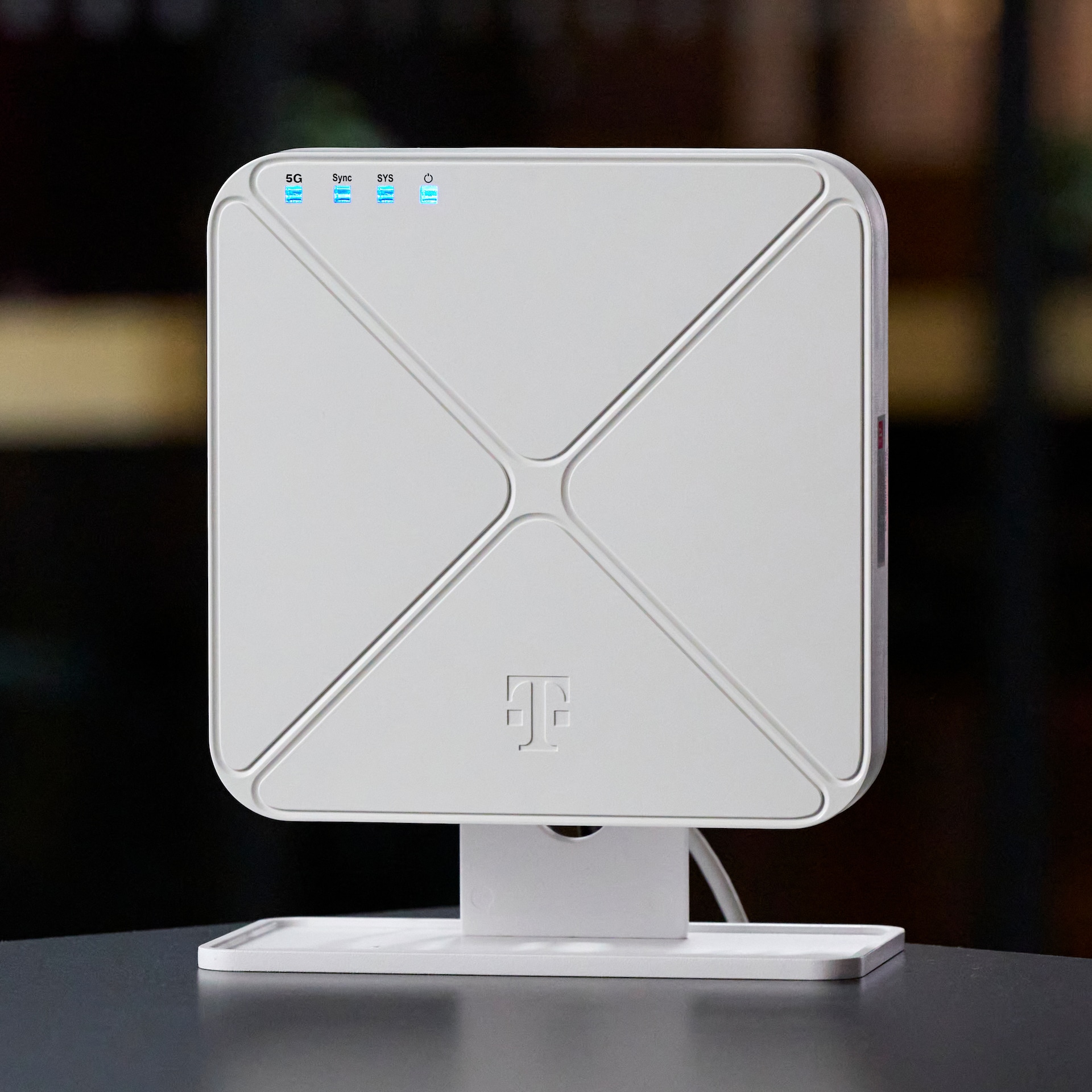
Front
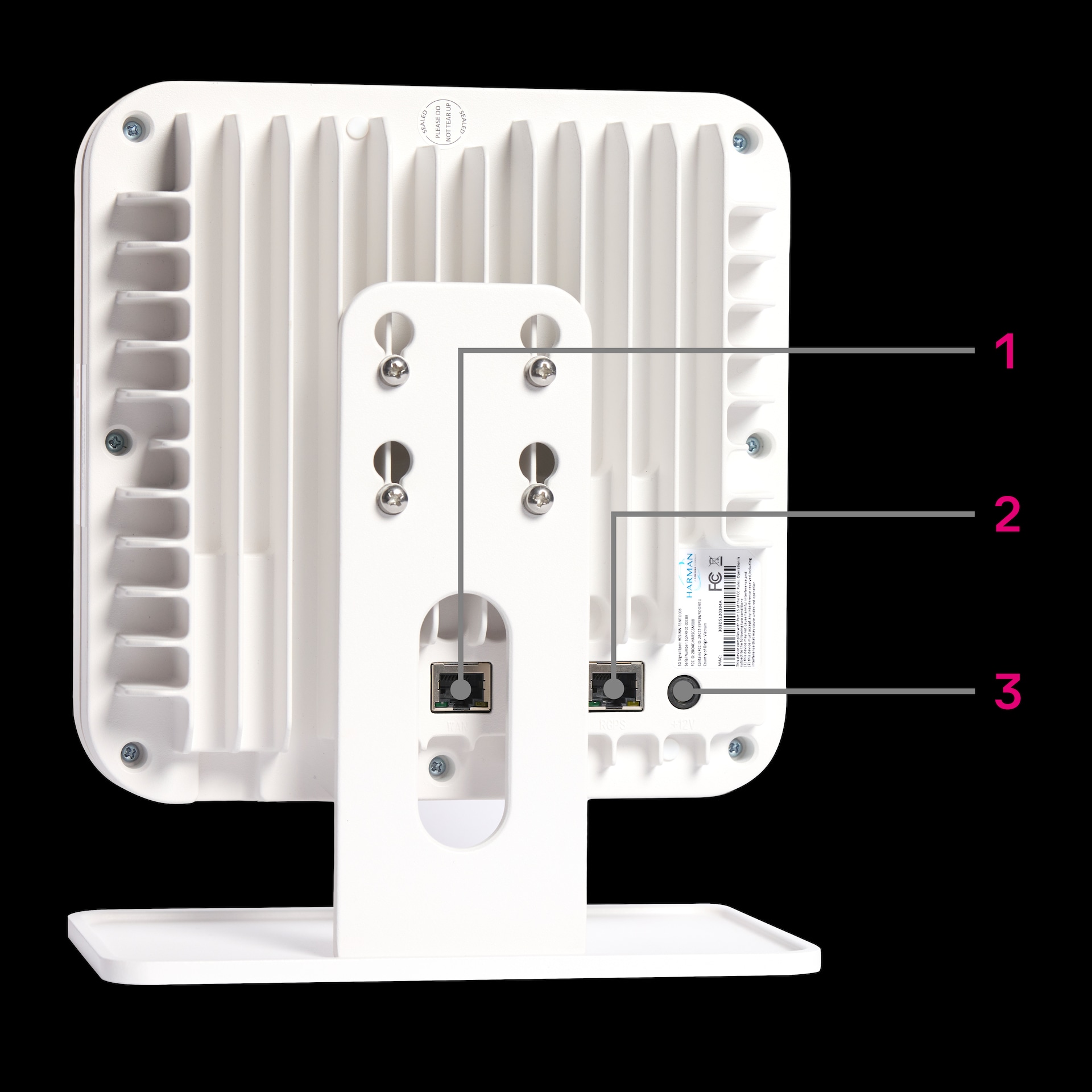
Back
### [](https://www.t-mobile.com)Tech specs
__Topic__ __Details__
Power adapter
12V/10A AC Adapter
IEEE 802.3bt Type 4 PoE++ (37V-57V)
Dimensions (H x W x D)
7.87” x 7.87” x 2.52” (200 x 200 x 64 mm)
Weight: 53 oz (1503g)
Operating Temperature Range
14 °F to 104 °F (-10 °C to 40 °C)
PLMNID (Public Land Mobile Network Identifier)
310-260
Network connectivity
5G SA
Band
N41 (2.5 GHz)
### [](https://www.t-mobile.com)Set up
Video not loading? Please __reload this page__ and try again.
1. Plug the included Cat5e/Cat6 cable into the __WAN__ port on the 5G Signal Spot and connect the other end to your broadband router or switch. Your connection must support Gigabit speeds, a minimum of 200 Mbps dedicated per unit is required (1 Gbps recommended).
2. Connect the RGPS antenna to the __RGPS__ port and place it near a window or any location with a clear, unobstructed view of the sky.
3. Power the device using either the included __12V/10A AC adapter__ (plug into the AC port) or a __PoE++ source__ (IEEE 802.3bt Type 4). Only one power source is needed.
4. The device automatically begins provisioning and establishes a secure IPSec tunnel to the T-Mobile 5G Core. __Allow 20–30 minutes__ for initial setup and network registration. All four LEDs will turn solid blue when the device is ready.
Backhaul and port requirements
Reduced broadband connections will result in reduced unit performance.
- A minimum broadband connection of 200 Mbps is required dedicated to each unit. 1 Gbps dedicated to each unit is recommended for most installations.
- Router must allow outbound traffic on ports.
- When possible, UPnP should be enabled on the router.
- A secure IPSec tunnel is established to the T-Mobile 5G Core for service connectivity.
Firewall Port requirements
| __Port Number__ | __UDP/TCP__ | __Use__ |
|-----------------|-------------|--------------------------------------------------|
| 123 | UDP | HTTPS/TLS secure communications |
| 208.54.0.0/16 | UDP/TCP | T-Mobile destination IP allowlist range |
| 500 | UDP | IPsec tunnel |
| 4500 | UDP/TCP | Encapsulated secure tunnel/proprietary transport |
### [](https://www.t-mobile.com)Update the address of use (E911)
The 5G Signal Spot has to be registered to the location where it's installed for E911 compliance. Update the address before moving to a new location so that service remains uninterrupted.
1. Log in to [T-Platform](https://www.t-mobile.com/t-platform) and update the address.
2. Once updated, power on or power cycle the device (unplug for a full minute and reconnect).
3. Allow 15–20 minutes for address updates to propagate and re-register with the network.
### [](https://www.t-mobile.com)LED indicators and ports
LED indicators
The front of the device has four LEDs displaying the status of the device. When all 4 are solid blue, the Signal Spot is working and broadcasting 5G. Red or blinking LEDs indicate an issue that needs attention.
| __LED__ | __What it monitors__ | __Normal status__ |
|--------------|----------------------------------------|-------------------------|
| Power | Device power and PoE status | Solid blue |
| System (SYS) | Overall system health | Solid blue |
| Sync | GPS timing and synchronization | GPS locked (blue) |
| 5G | Backhaul connectivity and 5G readiness | Cell Up on 5G SA (blue) |
Ports
| __Port Number__ | __Port label__ | __Purpose__ |
|-----------------|----------------|---------------------------------------------------------------------------------------------------------------------------------------|
| 1 | WAN/PoE++ | Ethernet connection to your router or switch. Also supports PoE++ (IEEE 802.3bt Type 4, 100W) for power delivery over the same cable. |
| 2 | RGPS | External GPS antenna connection for timing synchronization from satellites. |
| 3 | AC Power | 12V/10A AC power adapter connection. Only one power source (AC or PoE++) is required. |
### [](https://www.t-mobile.com)Troubleshooting
#### Set up
- __No LEDs are illuminated:__ Check power source (AC adapter or PoE++) and try a known working outlet or switch port.
- __Sync LED remains red for more than 20 minutes:__ Reposition the GPS antenna to a better location.
- __5G LED is red or blinking for more than 30 minutes:__ Confirm Ethernet connection and verify required ports are open.
- __All LEDs are blue, but performance is low:__ Verify available ISP bandwidth and reduce local network load.
- __All LEDs are blinking red or issues persist:__ [Contact us](https://www.t-mobile.com/contact-us).
* * *
Was this helpful?
* * *
## Get answers from our T-Mobile Business Expert, 24/7.
- [1-800-375-1126](tel:18003751126)
- [@TMobileBusiness](https://twitter.com/TMobileBusiness)
- [T-Mobile for Business](https://www.facebook.com/TMobileforBusiness)