[Skip to content](https://www.t-mobile.com/home-internet/the-signal/internet-devices/do-you-need-mesh-wi-fi#maincontent)
[The Signal](https://www.t-mobile.com/home-internet/the-signal)
- [All Blogs](https://www.t-mobile.com/home-internet/the-signal/latest)
- [Speed](https://www.t-mobile.com/home-internet/the-signal/category/speed)
- [Internet Devices](https://www.t-mobile.com/home-internet/the-signal/category/internet-devices)
- [ISP](https://www.t-mobile.com/home-internet/the-signal/category/isp)
- [Internet Help](https://www.t-mobile.com/home-internet/the-signal/category/internet-help)
- [Dialed In](https://www.t-mobile.com/dialed-in/)
- [All Blogs](https://www.t-mobile.com/home-internet/the-signal/latest)
- [Speed](https://www.t-mobile.com/home-internet/the-signal/category/speed)
- [Internet Devices](https://www.t-mobile.com/home-internet/the-signal/category/internet-devices)
- [ISP](https://www.t-mobile.com/home-internet/the-signal/category/isp)
- [Internet Help](https://www.t-mobile.com/home-internet/the-signal/category/internet-help)
- [Dialed In](https://www.t-mobile.com/dialed-in/)
1. [The Signal](https://www.t-mobile.com/home-internet/the-signal)
2. Category:[Internet Devices](https://www.t-mobile.com/home-internet/the-signal/category/internet-devices)
[Internet DevicesCategory](https://www.t-mobile.com/home-internet/the-signal/category/internet-devices)
# When You Actually Need Mesh Wi-Fi and When You May Not
Published: September 9, 2026
|9 min read
You may be wondering, “Do I need mesh Wi-Fi?” if your video calls freeze in one room, your streaming setup buffers upstairs, or your phone clings to one weak Wi-Fi bar in the backyard. [Mesh Wi-Fi](https://www.t-mobile.com/home-internet/the-signal/internet-help/beginners-guide-to-mesh-network) can help in many homes, but it is not always the first fix to try.
#### Jump to a Section^
1. [What is Mesh Wi-Fi?](https://www.t-mobile.com#what)
2. [Signs you may need mesh Wi-Fi](https://www.t-mobile.com#signs)
3. [Times you may not need mesh Wi-Fi](https://www.t-mobile.com#times)
4. [Mesh vs. Wi-Fi extender vs. router](https://www.t-mobile.com#compare)
5. [How to set up mesh Wi-Fi if you decide you want it](https://www.t-mobile.com#set-up)
- Share "When You Actually Need Mesh Wi-Fi and When You May Not " on X
- Share "When You Actually Need Mesh Wi-Fi and When You May Not " on Facebook
- Share "When You Actually Need Mesh Wi-Fi and When You May Not " on LinkedIn
In this article, we’ll break down when you may need mesh Wi-Fi, when you probably don’t, and what to check before buying new Wi-Fi equipment.
## 3 Key takeaways about mesh Wi-Fi
- Mesh Wi-Fi may help when weak coverage affects multiple rooms, floors, or far corners of your home.
- You may not need mesh if your issue comes from router placement, outdated equipment, or one small dead zone.
- Mesh Wi-Fi does not change the speed of your internet plan. It can help distribute Wi-Fi around your home, but your experience can still depend on your internet service, device, layout, walls, and network conditions.
[Get Mesh Wi-Fi](https://www.t-mobile.com/home-internet/plans/all-in-unlimited-internet-plan)
## What is Mesh Wi-Fi?
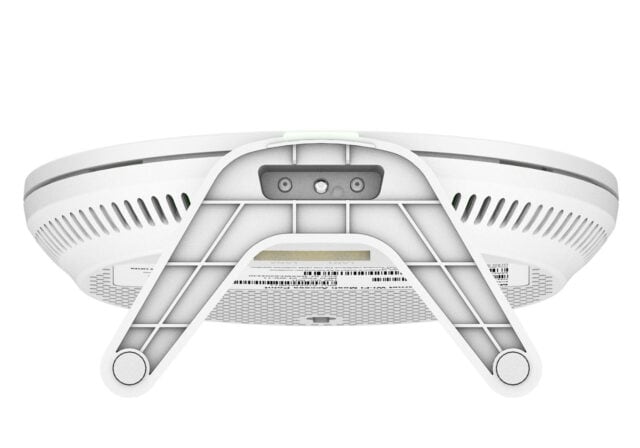
Mesh Wi-Fi is a home Wi-Fi setup that uses a main router or gateway connection plus additional nodes placed around your home. These nodes work together to create one wireless network, so your devices can connect to a nearby node as you move from room to room.
Think of a single router like one lamp in the middle of a room. It may light up a small space just fine. A mesh Wi-Fi system is more like placing a few lamps throughout the home so more areas get usable coverage.
Mesh Wi-Fi is mainly about coverage and consistency inside your home. It is not a magic speed button. If the internet connection coming into your home is slow or congested, adding mesh nodes likely won’t fix that root issue. Placement of each node matters too - positioning one too close to or too far from the main router can introduce interference or degrade performance.
## 4 Signs you may want mesh Wi-Fi
### 1. You have Wi-Fi dead zones in multiple rooms
A Wi-Fi dead zone is an area where the signal is weak, unstable, or unavailable. One dead zone may have a simple fix. Multiple dead zones can suggest your current Wi-Fi signal is not reaching enough of your home.
This can happen in larger homes, long layouts, multi-story spaces, or homes where the router sits at one end of the building. Buildings with dense construction materials — such as the plaster walls common in older homes or the steel infrastructure found in many apartment and condo buildings — may also significantly weaken signal strength and limit coverage.
### 2. Your home has multiple floors or a tricky layout
Wi-Fi signals can weaken as they pass through floors, walls, tile, brick, concrete, metal, mirrors, appliances, and other obstacles. If your router is downstairs but your work area or streaming room is far away, mesh Wi-Fi may help create a more usable signal path.
It may also help in homes where rooms are spread out horizontally instead of stacked vertically.
### 3. Your router cannot sit in a central spot
Sometimes the best router location is not realistic. The internet connection may enter through a corner office, utility room, closet, or window-facing area. That can leave the opposite side of the home with weaker Wi-Fi.
Mesh nodes can help carry coverage from the main connection point to areas that need a stronger connection, as long as each node is placed where it can still communicate well with the rest of the network.
### 4. You move around while staying connected
Mesh Wi-Fi may be useful if you regularly move through the house during video calls, voice calls over Wi-Fi, smart home control, or streaming. Because mesh nodes work as one network, your device may be able to connect to a closer node without you manually switching between network names.
That can make home Wi-Fi feel less choppy when you move from the kitchen to the office, or from the living room to the patio.
## 4 Times you may not need mesh
### 1. Your router is just in a bad spot
Before shopping for mesh Wi-Fi, check your router placement. If it sits in a closet, on the floor, behind a TV, near metal objects, or at the far edge of your home, it may not be giving your Wi-Fi signal a fair shot.
Try placing it in a more central area, off the floor, and away from large appliances or thick walls. A few feet can make a noticeable difference.
### 2. Only one small area has weak Wi-Fi
If one corner room or one outdoor-adjacent area has weak coverage, you may not need a full mesh system. A Wi-Fi extender, access point, or router placement adjustment may be enough, depending on your layout and equipment.
A mesh system may still work, but it may be more equipment than your situation needs.
### 3. The issue happens on only one device
If your laptop struggles but your phone, TV, and tablet work fine in the same room, the device may be the issue. Check whether the device needs a software update, has an older Wi-Fi adapter, is too far from the router, or has settings that limit performance.
Mesh Wi-Fi helps with network coverage. It may not fix a device-specific problem.
### 4. Your internet service or equipment is the bottleneck
Mesh Wi-Fi can help distribute your Wi-Fi signal, but it does not raise the speed of your internet plan. If every wired and wireless device feels slow, the root cause may be your internet connection, network congestion, the modem or gateway, or plan details.
A direct [Ethernet connection](https://www.t-mobile.com/home-internet/the-signal/speed/ethernet-vs-wifi) can help you test this. If wired performance is also low, mesh Wi-Fi may not be the right first fix.
## Mesh vs. Wi-Fi extender vs. router: How to think about the choice
The easiest way to choose is to match the fix to the problem. Start with where the Wi-Fi issue happens and how often it appears.
| Setup option | What it does | When it may make sense | What to consider |
|-------------------------|---------------------------------------------------------------|-----------------------------------------------------------------------------|------------------------------------------------------------------------------------|
| Better router placement | Moves your existing router to a more open or central location | Your router is tucked away, blocked, or sitting at one far edge of the home | Works best when the router can be moved without disrupting the internet connection |
| Newer router or gateway | Replaces older Wi-Fi hardware | Your current equipment is outdated or struggles with newer devices | It may improve Wi-Fi capability, but coverage still depends on home layout |
| Wi-Fi extender | Rebroadcasts Wi-Fi into a specific area | One room or small zone has weak coverage | Some setups may use a separate network name or need careful placement |
| Wired access point | Adds Wi-Fi from a wired connection in another location | You have Ethernet wiring or can run Ethernet to a hard-to-reach area | Setup may require more planning, but wired backhaul can help stability |
| Mesh Wi-Fi system | Uses multiple nodes to create one broader Wi-Fi network | Multiple rooms, floors, or far zones have weak or inconsistent coverage | Node placement matters, and adding too many nodes may create complexity |
A simple rule of thumb: if the problem is one spot, start small. If the problem follows you around the house, mesh Wi-Fi may deserve a closer look.
## How to set up mesh Wi-Fi if you decide you want it
If mesh Wi-Fi seems like the right fit, setup usually starts with one main unit connected to your modem, gateway, or internet source. Additional nodes are then placed around the home to extend the network.
Exact steps vary by equipment, but the general process often looks like this:
1. Connect the main mesh unit.
2. Place the first node nearby during setup.
3. Move nodes to planned locations between the router and weak areas.
4. Use the system’s signal guidance.
5. Test your usual activities, like video calls and streaming.
6. Adjust one node at a time.
For best results, treat mesh setup like arranging speakers in a room. Placement matters.
## FAQs about whether you need mesh Wi-Fi
__Do I need mesh for a small apartment?__
You may not need mesh Wi-Fi in a small apartment if your router can cover the space from a central location. Try moving the router, reducing interference, or upgrading outdated equipment first.
__When do I need mesh Wi-Fi instead of a regular router?__
You may want mesh when a single router cannot provide usable coverage across multiple rooms, floors, or far areas of your home. A regular router may be enough for smaller spaces or simpler layouts.
__Does mesh Wi-Fi make internet faster?__
Mesh Wi-Fi does not increase the speed of your internet plan. It may help your devices get a stronger Wi-Fi connection in more areas of your home, which can improve the experience in spots where Wi-Fi coverage was weak.
__Is mesh better than a Wi-Fi extender?__
Mesh Wi-Fi and Wi-Fi extenders solve similar coverage problems in different ways. Mesh may make sense for broader coverage across multiple rooms or floors, while an extender may work for one smaller weak spot.
__Do I need mesh Wi-Fi if I already have a gateway?__
You may still consider mesh Wi-Fi if your gateway works well near its location but does not cover the full home. Some gateways can also work with compatible extenders, access points, or mesh systems.
__How many mesh nodes do I need?__
The number of nodes depends on your home size, layout, building materials, and where coverage drops. Many homes start with a main unit and one or two nodes, then adjust based on signal strength.
__Where should I place mesh Wi-Fi nodes?__
Place mesh nodes in open areas between your main router and the weak coverage zone. Avoid putting them inside cabinets, behind TVs, or directly in dead zones.
__Can too many mesh nodes cause problems?__
Yes, too many nodes may create unnecessary complexity or interference in some homes. If nodes sit too close together or overlap heavily, your devices may not always connect the way you expect.
__What should I try before buying mesh Wi-Fi?__
Try moving your router, testing multiple devices, checking wired performance, restarting equipment, updating firmware, and mapping where coverage drops. Then you can choose the simplest fix that matches the problem.
## Choose mesh when it matches the real problem
So, do you need mesh Wi-Fi? Maybe. Mesh may be a strong fit when your home has several weak coverage areas, multiple floors, hard-to-reach rooms, or a layout that makes one router struggle.
You may not need it if better router placement, updated equipment, a wired connection, or a targeted extender can solve the issue. Start by finding the pattern, then match the fix to your home.
__You might also be interested in:__
- [How to Install a Mesh Wi-Fi System at Home](https://www.t-mobile.com/home-internet/the-signal/internet-devices/how-to-install-a-mesh-wifi-system-at-home)
- [What is Mesh Wi-Fi?](https://www.t-mobile.com/home-internet/the-signal/internet-help/beginners-guide-to-mesh-network)
- [Whole Home Wi-Fi: Utilizing Repeaters, Extenders or Mesh](https://www.t-mobile.com/home-internet/the-signal/speed/whole-home-wi-fi-repeaters-extenders-or-mesh)
- [How to Set Up a Wi-Fi Access Point at Home](https://www.t-mobile.com/home-internet/the-signal/internet-devices/how-to-set-up-a-wifi-access-point-at-home)
__Sources:__
- [https://www.wired.com/story/mesh-system-vs-wi-fi-router/](https://www.wired.com/story/mesh-system-vs-wi-fi-router/)
- [https://www.nytimes.com/wirecutter/blog/wi-fi-router-good-as-mesh/](https://www.nytimes.com/wirecutter/blog/wi-fi-router-good-as-mesh/)
- [https://support.google.com/googlehome/answer/7182746?hl=en](https://support.google.com/googlehome/answer/7182746?hl=en)
Tags
- [Gateway](https://www.t-mobile.com/home-internet/the-signal/archive/gateway)
- [Technology](https://www.t-mobile.com/home-internet/the-signal/archive/technology)
- [Whole Home](https://www.t-mobile.com/home-internet/the-signal/archive/whole-home)
- [Wi-Fi](https://www.t-mobile.com/home-internet/the-signal/archive/wi-fi)
- [Wi-Fi Booster](https://www.t-mobile.com/home-internet/the-signal/archive/wi-fi-booster)
## Related Articles
[Read More](https://www.t-mobile.com/home-internet/the-signal/isp/master-your-move-with-our-helpful-moving-checklist)
[](https://www.t-mobile.com/home-internet/the-signal/isp/master-your-move-with-our-helpful-moving-checklist)
[ISP](https://www.t-mobile.com/home-internet/the-signal/category/isp)
## [Master Your Move with Our Helpful Moving Checklist](https://www.t-mobile.com/home-internet/the-signal/isp/master-your-move-with-our-helpful-moving-checklist)
October 6, 2026
[Read More](https://www.t-mobile.com/home-internet/the-signal/internet-devices/wifi-options-for-campers)
[](https://www.t-mobile.com/home-internet/the-signal/internet-devices/wifi-options-for-campers)
[Internet Devices](https://www.t-mobile.com/home-internet/the-signal/category/internet-devices)
## [Stay A Happy Camper With These Wi-Fi Options](https://www.t-mobile.com/home-internet/the-signal/internet-devices/wifi-options-for-campers)
September 29, 2026
[Read More](https://www.t-mobile.com/home-internet/the-signal/internet-help/beginners-guide-to-mesh-network)
[](https://www.t-mobile.com/home-internet/the-signal/internet-help/beginners-guide-to-mesh-network)
[Internet Help](https://www.t-mobile.com/home-internet/the-signal/category/internet-help)
## [What is Mesh Wi-Fi? A Beginner’s Guide](https://www.t-mobile.com/home-internet/the-signal/internet-help/beginners-guide-to-mesh-network)
September 29, 2026
### Find out if your home address is eligible for T-Mobile 5G Home Internet.
[Check availability](https://www.t-mobile.com/home-internet/eligibility)
Top