[Skip to content](https://www.t-mobile.com/dialed-in/tips-tricks/why-is-my-phone-not-charging#maincontent)

Hey, looks like you need help finding something. I am here to chat if you have any questions
Skip to main content Skip to footer
[Wireless](https://www.t-mobile.com/)
[Business](https://www.t-mobile.com/business)
[Prepaid](https://prepaid.t-mobile.com/home)
[Internet](https://www.t-mobile.com/home-internet)
[](https://www.t-mobile.com)
Log in
[Plans](https://www.t-mobile.com/cell-phone-plans)
[Unlimited Phone Plans](https://www.t-mobile.com/cell-phone-plans)[Unlimited Age 55+](https://www.t-mobile.com/cell-phone-plans/unlimited-55-senior-discount-plans)[Military & Veterans](https://www.t-mobile.com/cell-phone-plans/military-discount-plans)[First Responder](https://www.t-mobile.com/cell-phone-plans/first-responder-discounts)[College Students](https://www.t-mobile.com/cell-phone-plans/student-discounts)[5G Home Internet Plans](https://www.t-mobile.com/home-internet/plans)[Fiber Internet Plans](https://www.t-mobile.com/home-internet/fiber)[Watch & Tablet Plans](https://www.t-mobile.com/cell-phone-plans/affordable-data-plans)[Prepaid Phone Plans](https://prepaid.t-mobile.com/prepaid-plans)[Business Phone Plans](https://www.t-mobile.com/business/wireless-business-plans)
[Phones & devices](https://www.t-mobile.com/cell-phones)
[Cell phones](https://www.t-mobile.com/cell-phones)[5G phones](https://www.t-mobile.com/5g/phones)[Tablets](https://www.t-mobile.com/tablets)[Smartwatches](https://www.t-mobile.com/smart-watches)[Hotspots & more](https://www.t-mobile.com/hotspots-iot-connected-devices)[Accessories](https://www.t-mobile.com/accessories)[Bring your own device](https://www.t-mobile.com/resources/bring-your-own-phone)[Tech Gift Ideas](https://www.t-mobile.com/devices/tech-gifts)
[Deals](https://www.t-mobile.com/offers)
[See all deals](https://www.t-mobile.com/offers)[Apple](https://www.t-mobile.com/offers/apple-iphone-deals)[Samsung](https://www.t-mobile.com/offers/samsung-phone-deals)[Motorola](https://www.t-mobile.com/offers/motorola-phone-deals)[Google](https://www.t-mobile.com/offers/google-phone-deals)[Revvl](https://www.t-mobile.com/offers/t-mobile-revvl-phone-deals)[Free & Zero Down Phones](https://www.t-mobile.com/switch/free-cell-phone-with-plan)
[Coverage](https://www.t-mobile.com/coverage/network)
[Our network](https://www.t-mobile.com/coverage/network)[4G & 5G Coverage map](https://www.t-mobile.com/coverage/coverage-map)[What is 5G](https://www.t-mobile.com/5g)[Satellite Phone Service](https://www.t-mobile.com/coverage/satellite-phone-service)[Rural & Small Towns](https://www.t-mobile.com/coverage/small-towns-rural-areas)[Try our network](https://www.t-mobile.com/offers/free-trial)[5G news](https://www.t-mobile.com/news/category/network)[Home Internet](https://www.t-mobile.com/home-internet/eligibility)
[Join Us](https://www.t-mobile.com/resources/how-to-join-us)
[How to switch](https://www.t-mobile.com/resources/how-to-join-us)[Bring your own phone](https://www.t-mobile.com/resources/bring-your-own-phone)[Keep your number](https://www.t-mobile.com/resources/keep-your-number)[Keep & switch](https://www.t-mobile.com/switch/keep-phone-switch-from-verizon-or-att)[Benefits](https://www.t-mobile.com/benefits)[Find your reason](https://www.t-mobile.com/membership)[T-Mobile Tuesdays](https://www.t-mobile.com/offers/t-mobile-tuesdays)
[Contact & support](https://www.t-mobile.com/contact-us)
[](https://www.t-mobile.com)[1-800-T-MOBILE](tel:1-800-866-2453)[Check order status](https://www.t-mobile.com/orders/check-order)[Help & support](https://www.t-mobile.com/support)[](https://www.t-mobile.com)
[Cart](https://www.t-mobile.com/cart)
Search
- POPULAR
[Search](javascript:void%280%29)
My account
more from T-Mobile
- [Wireless](https://www.t-mobile.com/)
- [Business](https://www.t-mobile.com/business)
- [Prepaid](https://prepaid.t-mobile.com/home)
- [Internet](https://www.t-mobile.com/home-internet)
Legal
- [Privacy Policy](https://www.t-mobile.com/privacy-center/our-practices/privacy-policy)
- [Do Not Sell My Personal Information](javascript:void%280%29)
- [Privacy Center](https://www.t-mobile.com/privacy-center)
[Log in](https://www.t-mobile.com)
[Bill pay](https://www.t-mobile.com/signin?state=eyJpbnRlbnQiOiJQYXltZW50IiwiYm9va21hcmtVcmwiOiJodHRwczovL215LnQtbW9iaWxlLmNvbS9vbmV0aW1lcGF5bWVudCJ9) [Add a line](https://www.t-mobile.com/commerce/device-intent) [Upgrade](https://www.t-mobile.com/purchase/shop) [Check order status](https://www.t-mobile.com/orders/check-order) [Ask the Community](https://www.t-mobile.com/community)
[Dialed In](https://www.t-mobile.com/dialed-in)
- [All Blogs](https://www.t-mobile.com/dialed-in/latest)
- [Devices](https://www.t-mobile.com/dialed-in/category/devices)
- [Accessories](https://www.t-mobile.com/dialed-in/category/accessories)
- [Tips & Tricks](https://www.t-mobile.com/dialed-in/category/tips-tricks)
- [Wireless 101](https://www.t-mobile.com/dialed-in/category/wireless)
- [The Signal](https://www.t-mobile.com/home-internet/the-signal/)
- [Newsroom](https://www.t-mobile.com/news)
- [All Blogs](https://www.t-mobile.com/dialed-in/latest)
- [Devices](https://www.t-mobile.com/dialed-in/category/devices)
- [Accessories](https://www.t-mobile.com/dialed-in/category/accessories)
- [Tips & Tricks](https://www.t-mobile.com/dialed-in/category/tips-tricks)
- [Wireless 101](https://www.t-mobile.com/dialed-in/category/wireless)
- [The Signal](https://www.t-mobile.com/home-internet/the-signal/)
- [Newsroom](https://www.t-mobile.com/news)
1. [Dialed In](https://www.t-mobile.com/dialed-in)
2. Category:[Tips & Tricks](https://www.t-mobile.com/dialed-in/category/tips-tricks)
[Tips & TricksCategory](https://www.t-mobile.com/dialed-in/category/tips-tricks)
# Why Is My Phone Not Charging? Top 7 Causes & Simple Fixes
Published: January 13, 2026
|9 min read
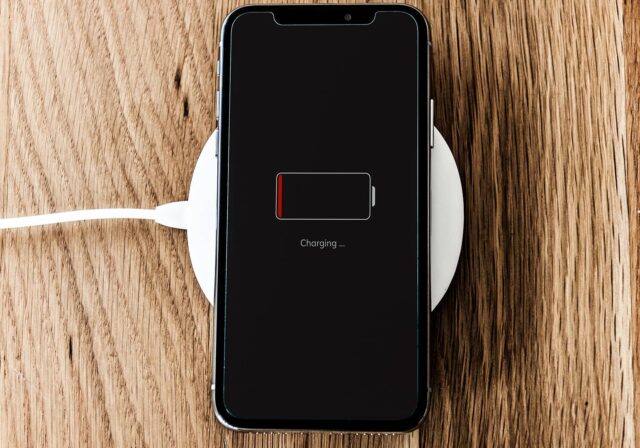
You plug in your [phone](https://www.t-mobile.com/cell-phones) expecting that familiar charging icon – but nothing happens. It’s one of the most frustrating tech problems: your phone is not charging. Before you assume the battery or port is dead, there are several simple things you can check first.
#### Jump to a Section^
1. [Phone not charging: Common causes vs. simple fixes](https://www.t-mobile.com#causes)
2. [7 common reasons your phone is not charging (and how to fix them)](https://www.t-mobile.com#7)
3. [Android vs. iPhone charging issues](https://www.t-mobile.com#android)
4. [When your phone is plugged in but still not charging](https://www.t-mobile.com#plugged)
5. [How to check for water damage on your phone](https://www.t-mobile.com#water)
6. [When to contact support for phone charging issues](https://www.t-mobile.com#contact)
7. [5 FAQs about phone charging issues](https://www.t-mobile.com#faq)
8. Show More^
- Share "Why Is My Phone Not Charging? Top 7 Causes & Simple Fixes " on X
- Share "Why Is My Phone Not Charging? Top 7 Causes & Simple Fixes " on Facebook
- Share "Why Is My Phone Not Charging? Top 7 Causes & Simple Fixes " on LinkedIn
In this article, we’ll walk through why your phone might not be charging, how to troubleshoot both [Android](https://www.t-mobile.com/cell-phones/osy/android) and [iPhone](https://www.t-mobile.com/cell-phones/brand/apple) charging issues, and when to seek professional help.
## __Phone not charging: Common causes vs. simple fixes__
| Cause | What you’ll notice | Fix to try |
|-------------------------------|-------------------------------------------------------------------------------------------------------|-----------------------------------------------------------------------------------------|
| Dirty charging port | Loose cable, lint buildup, or inconsistent connection | Power off phone and gently clean port with a dry toothpick or anti-static brush |
| Faulty cable or adapter | No charging icon, slow charging speed, or you may have to hold your charging cable at a certain angle | Swap with a known working cable and adapter |
| Faulty outlet or power source | No response even with new accessories | Try a different wall outlet, USB port, or power bank |
| Software glitch | Charging icon appears but battery % doesn’t increase | Restart the phone or perform a soft reset |
| Outdated OS | Charging issues after an update | Check for and install system updates |
| Water or moisture damage | “Moisture detected” warning or corrosion | Power off, air-dry completely, and avoid heat |
| Degraded battery | Battery drains quickly or doesn’t hold charge | Check battery health and contact your manufacturer for service repair options if needed |
| Hardware failure | Port feels loose or physically damaged | Contact a repair shop or your manufacturer for service protection options |
## __7 common reasons your phone is not charging (and how to fix them)__
Phone charging issues can stem from hardware, software, or environmental factors. Let’s walk through the seven most common reasons your phone is not charging – and what to do about each one:
### __1. Dirty charging port__
Over time, dust and lint can collect inside your charging port, blocking contact between your cable and device.
__How to fix it:__
1. Turn off your phone.
2. Use a flashlight to check inside the port.
3. Gently remove debris using a dry toothpick, anti-static brush, or can of compressed air.
4. Reconnect your charger and test again.
If the port still feels loose, it may need professional cleaning or repair.
### __2. Damaged__ [__cable or adapter__](https://www.t-mobile.com/accessories/category/chargers-and-adapters)
A frayed cable or faulty adapter is one of the easiest charging issues to fix.
__How to fix it:__
- Swap in a different charging cable and wall adapter that you know works.
- Try charging from another outlet, USB port, or power bank.
- If the problem disappears, the original accessories were likely the culprit.
### __3. Power source issue__
Sometimes, the problem isn’t the phone – it’s the outlet or power strip.
__How to fix it:__
- Plug another device (like a lamp or laptop) into the same outlet to confirm it works.
- If using a surge protector or extension cord, plug the charger directly into a wall outlet.
- Avoid charging from weak power sources like low-output USB ports
### __4. Software issues__
A glitch in your phone’s operating system can interrupt charging, even when the hardware is fine.
__How to fix it:__
- Restart your phone to clear temporary errors.
- Close unused background apps that drain power.
- Update your phone’s software to the latest version.
- If issues persist, back up your data and consider a factory reset.
### __5. Water or moisture damage__
Even [water-resistant phones with good IP ratings](https://www.t-mobile.com/dialed-in/devices/water-resistant-phones) can experience issues. The good news is that most modern smartphones can detect moisture in the charging port and temporarily disable charging to prevent short circuits.
__How to fix it:__
- Unplug your device immediately.
- Do not apply heat or use a hairdryer.
- Let the phone air-dry naturally for at least 24 hours.
- Once the moisture warning disappears, test charging again.
If the device won’t charge after drying, corrosion may have damaged internal components. At this point, we recommend contacting your phone manufacturer, authorized repair center, or carrier for diagnostics.
### __6. Battery degradation__
Batteries naturally lose capacity over time. An aging or swollen battery may not hold or accept charge properly.
__How to fix it:__
- Check your battery health in your device settings (available on most Android and iPhones).
- If capacity is below 80% or you experience sudden shutdowns, consider a replacement.
Keep your phone in a cool place while charging – and ideally on a hard surface, not sandwiched between pillows, etc.) While it’s generally safe to charge your phone overnight, it’s best not to keep the phone at 100% for long periods. Turning on ‘optimized charging’ or ‘adaptive charging’ helps ensure this doesn’t happen when charging for long periods.
### __7. Hardware failure__
If you’ve tried everything and your phone still won’t charge, there may be damage to the port, motherboard, or power management circuit.
__How to fix it:__
- Look for visible corrosion or loose connections.
- Avoid forcing the cable into the port.
- Contact your phone manufacturer, authorized repair center, or carrier for diagnostics.
## __Android vs. iPhone charging issues__
Although both platforms experience similar charging problems, some issues are specific to Android or iPhone devices.
### __iPhone-specific issues__
- The Lightning port tends to collect lint due to its narrow shape. See if it needs cleaning.
- iPhones may display an “Accessory Not Supported” message when using uncertified Lightning cables. Ideally one that’s certified by the manufacturer of your phone.
- iPhones with USB-C ports may show moisture alerts - charging will pause until the port is fully dry.
### __Android-specific issues__
- Some Android phones falsely indicate charging even when no power is flowing.
- Certain models may have loose USB-C ports after repeated use.
- You can test if it’s a port issue by trying wireless charging (if supported).
## __When your phone is plugged in but still not charging__
If your phone shows the charging icon but the battery percentage isn’t increasing, here’s what may be happening:
- __Background apps__ and [bloatware](https://www.t-mobile.com/home-internet/the-signal/internet-help/what-is-bloatware) can consume more power than your charger supplies.
- __Low-wattage chargers__ (like older USB ports) can’t keep up with power draw.
- __Overheating__ prevents the battery from charging safely.
__Try this:__
1. Close all active apps.
2. Lower your screen brightness.
3. Use a higher-wattage charger that’s recommended for your device.
4. Charge your phone in a cool, ventilated area.
## __How to check for water damage on your phone__
Many smartphones include moisture detection sensors or Liquid Contact Indicators (LCIs) inside the charging port or SIM tray.
__How to check:__
- For most iPhones with a SIM tray: Remove the SIM tray and look inside for the LCI. If you see a red or pink dot, the phone has been exposed to moisture. *Note: Some newer iPhones (with eSIM) won’t have an accessible LCI*.
- For Android phones: Check the charging port for residue, fog, or corrosion.
- If water exposure occurred, avoid plugging in the charger until the phone is fully dry.
If you see visible damage or your phone won’t power on, contact a professional repair technician.
## __When to contact support for phone charging issues__
If you’ve tried every troubleshooting step and your phone still refuses to charge, professional support may be your best option.
__Contact support when:__
- The charging port feels loose or wobbly.
- Your phone shows corrosion or a burnt smell.
- The device gets hot quickly when plugged in.
- None of your accessories work with your phone.
Options include:
- Visiting a certified repair shop.
- Contacting your phone manufacturer’s customer support.
- Exploring warranty or insurance options through your carrier.
## 5 FAQs about phone charging issues
### __How do I clean my charging port safely?__
Power off your phone and use a wooden or plastic toothpick to gently remove lint. Avoid liquids and metal objects.
### __What should I do if my charging cable works on other devices but not mine?__
Your phone’s charging port may be damaged or dirty. Try cleaning it and testing again.
### __Can a software update fix phone charging issues?__
Sometimes. System updates often fix bugs that affect charging and battery recognition.
### __What if my phone charges slowly?__
Close background apps, use a higher-wattage charger, and avoid charging while using power-hungry features.
### __How do I know if my phone battery needs to be replaced?__
If your phone drains quickly or shuts off unexpectedly, it may be time for a new battery or phone.
## Still wondering why your phone isn’t charging? Here’s what to do next
A non-charging phone doesn’t always need replacement. Start with the basics – check cables, clean ports, update software, and make sure your power source is solid. Most issues resolve at home in minutes. If nothing works, it’s time for a technician to check the port, battery, or circuitry. It may also be time to look for a new phone if the cost of repair is more than it’s worth.
##### __You may also be interested in:__
- [Troubleshooting - Battery usage](https://www.t-mobile.com/support/tutorials/device/t-mobile/revvl-5g/troubleshooter/troubleshooting/battery-usage)
- [Check the condition of a device](https://www.t-mobile.com/support/devices/device-troubleshooting/check-the-condition-of-a-device)
- [Should I Repair or Replace My Phone?](https://www.t-mobile.com/dialed-in/tips-tricks/repair-or-replace-phone)
- [How Does Wireless Charging Work?](https://www.t-mobile.com/dialed-in/accessories/how-does-wireless-charging-work)
- [What is MagSafe?](https://www.t-mobile.com/dialed-in/accessories/what-is-magsafe)
- [Check the Trade-In Value of Your Phone](https://www.t-mobile.com/devices/phone-trade-in)
- [How to Recycle e-Waste](https://www.t-mobile.com/home-internet/the-signal/internet-devices/electronics-recycling)
__Sources:__
[https://support.apple.com/en-us/108805](https://support.apple.com/en-us/108805)
[https://gizmohopper.com/%F0%9F%93%B1-phone-not-charging-10-common-reasons-and-how-to-fix-them](https://gizmohopper.com/%F0%9F%93%B1-phone-not-charging-10-common-reasons-and-how-to-fix-them)
[https://www.techadvisor.com/article/729931/how-to-fix-a-phone-that-wont-charge.html](https://www.techadvisor.com/article/729931/how-to-fix-a-phone-that-wont-charge.html)
[https://www.androidauthority.com/fix-phone-won-t-charge-how-to-705387](https://www.androidauthority.com/fix-phone-won-t-charge-how-to-705387)
[https://powerstationhq.com/why-is-my-phone-not-charging-even-when-plugged-in](https://powerstationhq.com/why-is-my-phone-not-charging-even-when-plugged-in)
[https://smallusefultips.com/what-do-i-do-if-my-phone-charger-is-plugged-in-but-not-charging](https://smallusefultips.com/what-do-i-do-if-my-phone-charger-is-plugged-in-but-not-charging)
[https://www.lifewire.com/fix-android-phone-not-charging-4769913](https://www.lifewire.com/fix-android-phone-not-charging-4769913)
[https://www.bestbuy.com/discover-learn/why-wont-my-phone-charge/pcmcat1723142146144](https://www.bestbuy.com/discover-learn/why-wont-my-phone-charge/pcmcat1723142146144)
[https://www.androidauthority.com/leave-phone-plugged-overnight-703078](https://www.androidauthority.com/leave-phone-plugged-overnight-703078)
Tags
- [Education](https://www.t-mobile.com/dialed-in/archive/education)
- [Phone](https://www.t-mobile.com/dialed-in/archive/phone)
## Related Articles
NEW
[Read More](https://www.t-mobile.com/dialed-in/tips-tricks/how-long-should-a-phone-last)
[](https://www.t-mobile.com/dialed-in/tips-tricks/how-long-should-a-phone-last)
[Tips & Tricks](https://www.t-mobile.com/dialed-in/category/tips-tricks)
## [How Long Does a Smartphone Last? A 2026 Guide to Phone Lifespan](https://www.t-mobile.com/dialed-in/tips-tricks/how-long-should-a-phone-last)
September 22, 2026
NEW
[Read More](https://www.t-mobile.com/dialed-in/tips-tricks/avoid-phone-scams)
[](https://www.t-mobile.com/dialed-in/tips-tricks/avoid-phone-scams)
[Tips & Tricks](https://www.t-mobile.com/dialed-in/category/tips-tricks)
## [How to Spot and Avoid Phone Scams in 2026: Signs, Tips, and More](https://www.t-mobile.com/dialed-in/tips-tricks/avoid-phone-scams)
September 24, 2026
NEW
[Read More](https://www.t-mobile.com/dialed-in/tips-tricks/take-better-photos-with-phone)
[](https://www.t-mobile.com/dialed-in/tips-tricks/take-better-photos-with-phone)
[Tips & Tricks](https://www.t-mobile.com/dialed-in/category/tips-tricks)
## [How to Take Better Photos With Your Phone: A Beginner’s Guide](https://www.t-mobile.com/dialed-in/tips-tricks/take-better-photos-with-phone)
August 27, 2026
### Get Connected with T-Mobile! Shop Now for your ideal phone.
[Shop now](https://www.t-mobile.com/cell-phones)
## Follow T-Mobile
- [](https://www.instagram.com/tmobile/)
- [](https://www.facebook.com/TMobile)
- [](https://twitter.com/TMobile)
- [](https://www.youtube.com/user/TMobile/custom)
[English](https://t-mobile.com)[Español](https://es.t-mobile.com)
Even more plans
Even more plans
- [Senior phone plans](https://www.t-mobile.com/cell-phone-plans/unlimited-55-senior-discount-plans)
- [International phone plans](https://www.t-mobile.com/cell-phone-plans/international-roaming-plans)
- [International passes](https://www.t-mobile.com/cell-phone-plans/international-roaming-plans/unlimited-calling-data-pass)
- [Home Internet plans](https://www.t-mobile.com/home-internet/plans)
- [Phone and internet bundles](https://www.t-mobile.com/cell-phone-plans/phone-home-internet-bundle)
- [Hotspot plans](https://www.t-mobile.com/cell-phone-plans/affordable-data-plans/hotspots)
- [Business phone plans](https://www.t-mobile.com/business/wireless-business-plans)
Shop devices by brand
Shop devices by brand
- [iPhones](https://www.t-mobile.com/cell-phones/brand/apple)
- [iPads](https://www.t-mobile.com/tablets/brand/apple)
- [Apple Watches](https://www.t-mobile.com/smart-watches/brand/apple)
- [Galaxy phones](https://www.t-mobile.com/cell-phones/brand/samsung)
- [Samsung tablets](https://www.t-mobile.com/tablets/brand/samsung)
- [Samsung watches](https://www.t-mobile.com/smart-watches/brand/samsung)
- [Motorola phones](https://www.t-mobile.com/cell-phones/brand/motorola)
- [Google Pixel phones](https://www.t-mobile.com/cell-phones/brand/google)
New featured cell phones
New featured cell phones
- [New Apple iPhone Duo](https://www.t-mobile.com/cell-phone/apple-iphone-duo)
- [New Apple iPhone 18 Pro](https://www.t-mobile.com/cell-phone/apple-iphone-18-pro)
- [New Apple iPhone 18 Pro Max](https://www.t-mobile.com/cell-phone/apple-iphone-18-pro-max)
- [New Samsung Galaxy Z Fold8](https://www.t-mobile.com/cell-phone/samsung-galaxy-z-fold8)
- [New Google Pixel 11](https://www.t-mobile.com/cell-phone/google-pixel-11)
New featured tablets, smartwatches & more
New featured tablets, smartwatches & more
- [Apple iPad Mini (A17 Pro)](https://www.t-mobile.com/tablet/apple-ipad-mini-a17-pro)
- [Apple iPad (A16)](https://www.t-mobile.com/tablet/apple-ipad-a16)
- [Apple Watch SE 3 40mm](https://www.t-mobile.com/smart-watch/apple-watch-se-3-40mm)
- [T-Mobile Revvl Tab 2](https://www.t-mobile.com/tablet/t-mobile-revvl-tab-2)
- [Samsung Galaxy Tab A11+ 5G](https://www.t-mobile.com/tablet/samsung-galaxy-tab-a11-plus-5g)
- [Samsung Galaxy Watch Ultra2](https://www.t-mobile.com/smart-watch/samsung-galaxy-watch-ultra2)
Helpful consumer guides
Helpful consumer guides
- [Dialed In](https://www.t-mobile.com/dialed-in)
- [Cell Phone BYOD Guide](https://www.t-mobile.com/dialed-in/devices/what-is-byod-bring-your-own-device)
- [The 6 Best Samsung Phones of 2026](https://www.t-mobile.com/dialed-in/devices/best-samsung-phones)
- [iPhone 18 Series: Specs, Price and Release Dates](https://www.t-mobile.com/dialed-in/devices/iphone-18-series-specs-features)
- [How Does Satellite Phone Service Work?](https://www.t-mobile.com/dialed-in/wireless/how-satellite-phone-service-works)
T-Mobile customer benefits
T-Mobile customer benefits
- [TV streaming deals](https://www.t-mobile.com/tv-streaming)
- [T-Mobile Tuesdays](https://www.t-mobile.com/offers/t-mobile-tuesdays)
- [In-flight wi-fi](https://www.t-mobile.com/benefits/travel/in-flight-wifi)
- [Refer-a-Friend](https://referral.t-mobile.com/)
- [Device protection plan](https://www.t-mobile.com/benefits/phone-protection-plans)
- [Protection 360® HomeTech](https://www.t-mobile.com/benefits/phone-protection-plans/p360-home-tech)
Switch to T-Mobile
Switch to T-Mobile
- [How to switch to T-Mobile](https://www.t-mobile.com/resources/how-to-join-us)
- [Try our 5G network](https://www.t-mobile.com/offers/free-trial)
- [Bring your own device](https://www.t-mobile.com/resources/bring-your-own-phone)
- [Switch to T-Mobile from Verizon or AT&T](https://www.t-mobile.com/switch/keep-phone-switch-from-verizon-or-att)
- [Family freedom deal](https://www.t-mobile.com/switch/pay-off-carrier-etf-phone-deal)
- [Cell phone trade-in](https://www.t-mobile.com/devices/phone-trade-in)
Additional support
Additional support
- [View return policy](https://www.t-mobile.com/responsibility/legal/return-policy)
- [Contact us](https://www.t-mobile.com/contact-us)
- [Billing](https://www.t-mobile.com/support/account/whats-impacting-your-bill)
- [Shipping & pickup options](https://www.t-mobile.com/customers/shipping-dates)
- [Free Internet for Students](https://www.t-mobile.com/brand/project-10-million)
- [Redeem a rebate](https://promotions.t-mobile.com/)
- [Domestic Violence Resources](https://www.t-mobile.com/support/account/keeping-customers-safe-connected)
About T-Mobile
About T-Mobile
- [Our Story](https://www.t-mobile.com/our-story)
- [T-Mobile careers](https://careers.t-mobile.com/)
- [Privacy Center](https://www.t-mobile.com/privacy-center)
- [Newsroom](https://www.t-mobile.com/news)
- [Corporate Responsibility](https://www.t-mobile.com/responsibility)
[](https://www.t-mobile.com)
- [About](https://www.t-mobile.com/our-story)
- [Investor relations](https://investor.t-mobile.com/default.aspx)
- [Press](https://www.t-mobile.com/news)
- [Careers](https://careers.t-mobile.com)
- [Deutsche Telekom](https://www.telekom.com/en)
- [Puerto Rico](https://www.t-mobilepr.com/)
- [Privacy Notice](https://www.t-mobile.com/privacy-center/privacy-notices/t-mobile-privacy-notice)
- [Trust Center](https://security.t-mobile.com/)
- [Privacy Center](https://www.t-mobile.com/privacy-center)
- [Consumer information](https://www.t-mobile.com/responsibility/consumer-info)
- [Public safety/911](https://www.t-mobile.com/responsibility/consumer-info/safety/9-1-1)
- [Terms & conditions](https://www.t-mobile.com/responsibility/legal/terms-and-conditions)
- [Terms of use](https://www.t-mobile.com/responsibility/consumer-info/policies/terms-of-use)
- [Accessibility](https://www.t-mobile.com/responsibility/consumer-info/accessibility-policy)
- [Open Internet](https://www.t-mobile.com/responsibility/consumer-info/policies/internet-service)
- [Do Not Sell or Share My Personal Information](javascript:void%280%29)
- [Licenses & Patents](https://www.t-mobile.com/responsibility/legal/licenses-and-patents)
- [Consumer Health Data Privacy Notice](https://www.t-mobile.com/privacy-center/privacy-notices/t-mobile-privacy-notice.html#health-data-privacy-notice)
- [T-Mobile, the T logo, Magenta and the magenta color are registered trademarks of Deutsche Telekom AG.](https://www.t-mobile.com)
- [](https://www.instagram.com/tmobile/)
- [](https://www.facebook.com/TMobile)
- [](https://twitter.com/TMobile)
- [](https://www.youtube.com/user/TMobile/custom)
© 2026 T‑Mobile USA, Inc.
Top